1Module overview
The module Cybersecurity module covers two complementary methods:
EBIOS RM workflow
2Create a cybersecurity project
From the home page, click New project and choose the type suited to your context:
| Project type | Included methods | Use |
|---|---|---|
| Cyber SI | EBIOS Risk Manager (5 ateliers) | Information systems, ANSSI |
| Cyber OT | EBIOS RM + IEC 62443 | Connected industrial systems (SCADA and PLCs) |
| Multi-modules | Cyber + Industrial Risk (cyber-physical type) | Mixed IS/OT/physical scope |
3AI Scoping—assisted pre-filling
L'assistant IA accelerates EBIOS RM workshops by generating proposals from context already entered in the project—business values, supporting assets, risk sources, and stakeholders.
Moteurs disponibles
Configure the assistant on the AI Configuration page (/gestion/ia), with eight engines: Gemini, Claude, Mistral, Groq, HuggingFace (experimental), OpenRouter (experimental), Ollama (local, experimental), Custom (custom URL/model, experimental).
What the AI can generate
| Atelier | Proposed generation |
|---|---|
| Atelier 3 | Attack paths between a risk source and business value, using existing stakeholders |
| Atelier 4 | Operational scenarios (sequences of technical actions) from a selected strategic scenario, with likelihood rating |
| Atelier 5 | Treatment-measure and action-plan suggestions based on identified risks |
Open the AI panel using the ✦ button on the relevant pages (Strategic Scenarios, Operational Scenarios, and Risk Treatment). Validate each proposed result before adding it to the table.
4Workshop 1—Scope and security baseline
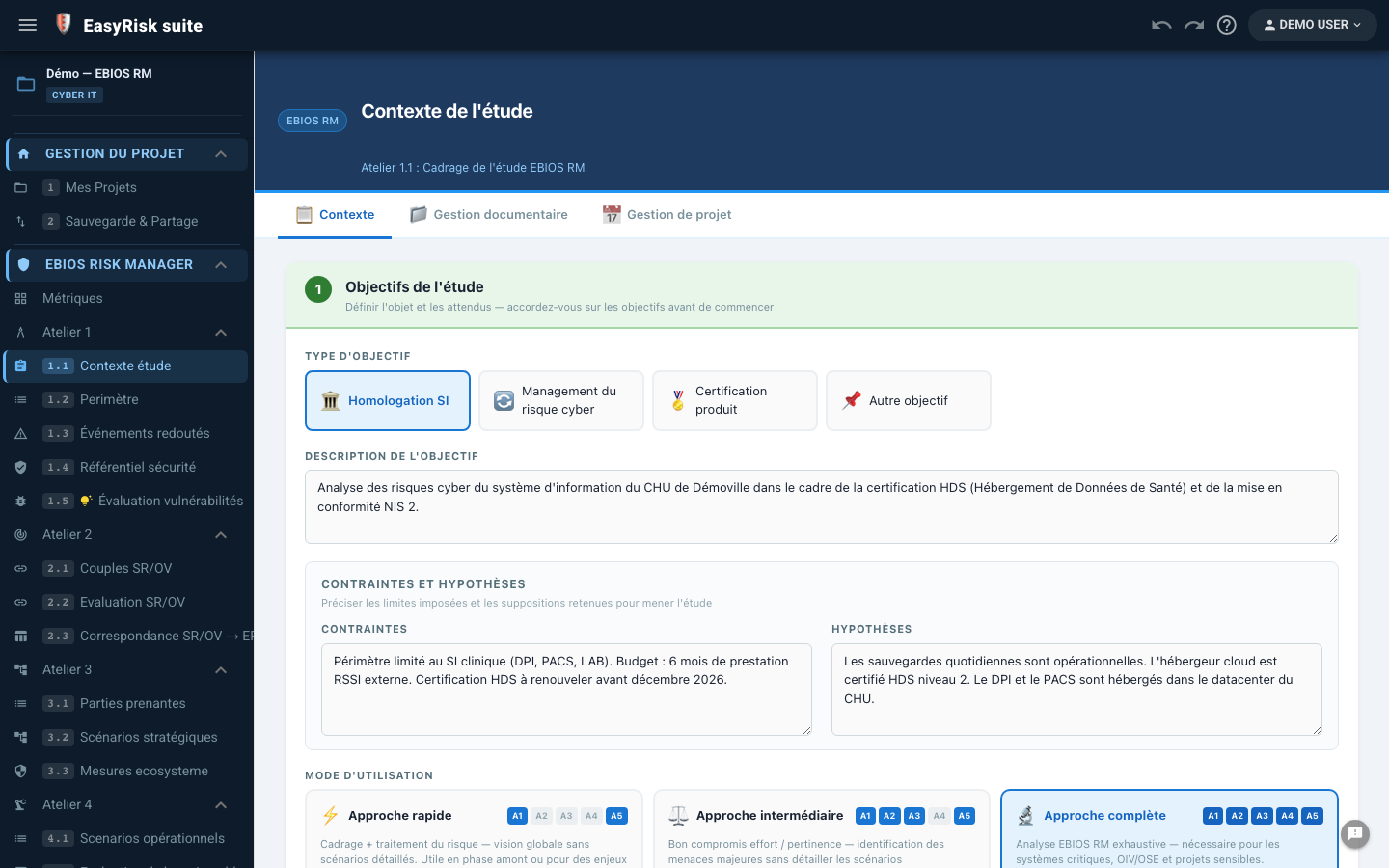
Workshop 1 defines the study scope: what you protect (missions, business values, and supporting assets), what could go wrong (feared events), and security measures already in place (security baseline). It is the foundation of the EBIOS RM analysis.
| Step | Page | Content |
|---|---|---|
| 1.1 | Study context | Study objectives, constraints, assumptions, usage mode, and participants |
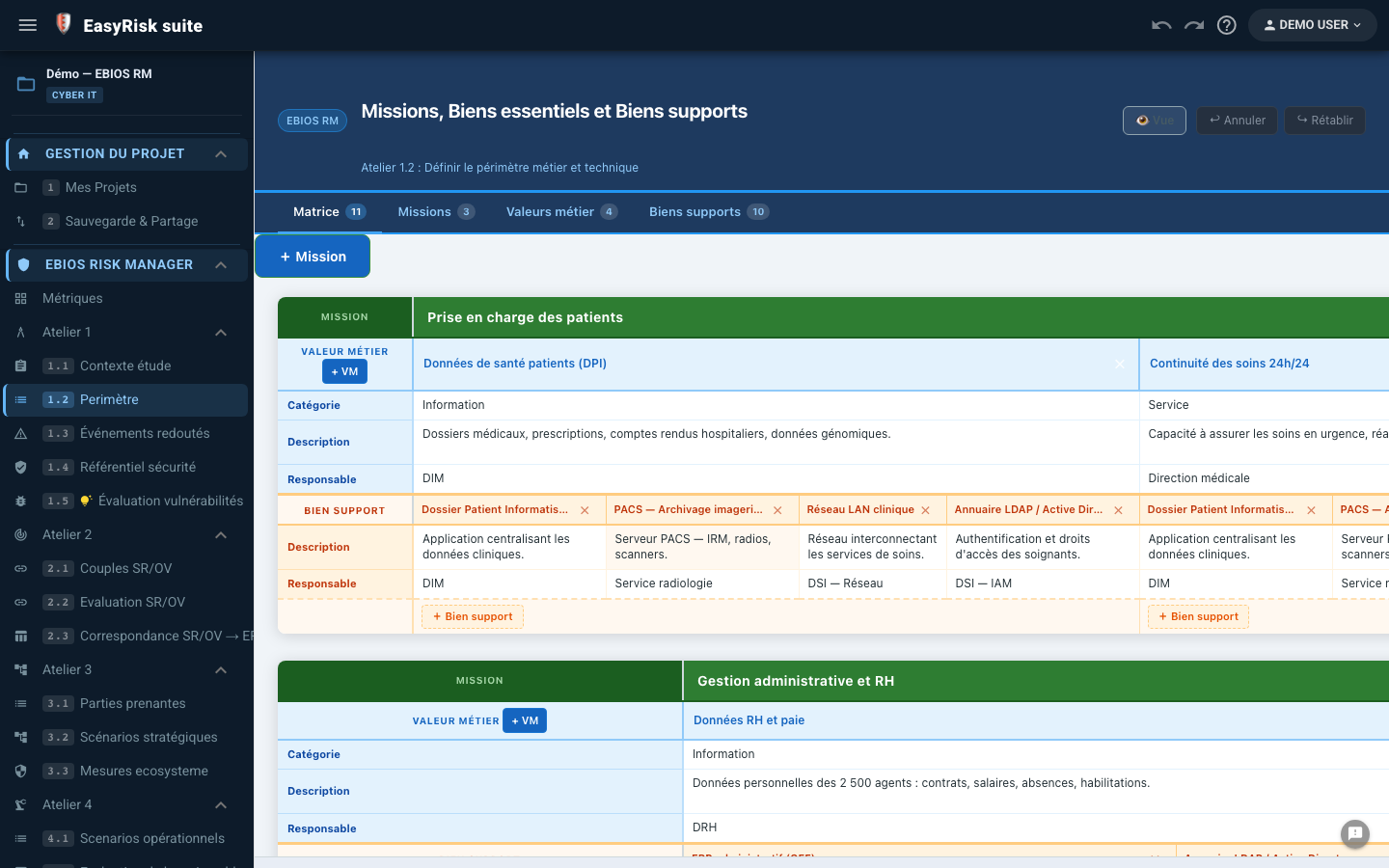
| 1.2 | Scope | Missions, business values (essential assets), and supporting assets |
| 1.3 | Feared events | Business-value compromise scenarios, impacts, and severity |
| 1.4 | Security framework | Frameworks and security measures already applied (security baseline) |
| 1.5 / 1.6 | Vulnerabilities, Zones & Conduits | Optional additions, especially for OT/industrial scopes |
Missions, business values, and supporting assets (1.2)
A mission groups one or more business values (processes, information, or assets whose compromise would have significant impact). Each business value relies on one or more supporting assets (server, VPN, application, etc.), and one supporting asset may support several business values.
Feared events (1.3)
A feared event describes a business-value compromise scenario: impact categories (financial, reputational, legal, operational, etc.) and severity level (S1 to S4). An integrated library (📚) provides pre-built feared events by typical business value.
5Workshop 2—Risk sources
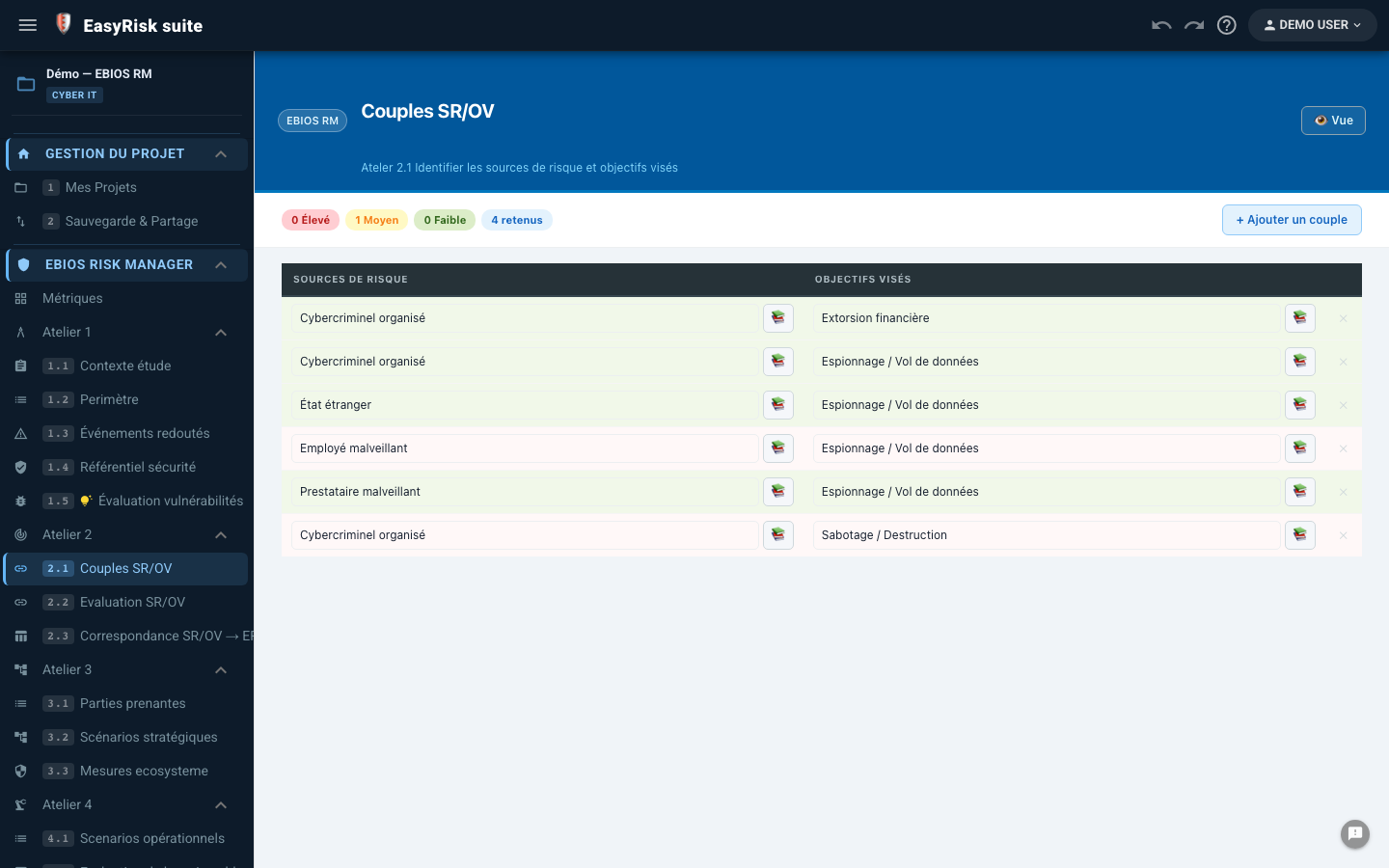
Workshop 2 identifies who could threaten your organisation and what those threats seek to obtain or destroy, as Risk Source / Targeted Objective (RS/TO) pairs.
| Step | Content |
|---|---|
| 2.1 — Couples SR/OV | Build pairs from the integrated library (cybercriminal groups, states, malicious insiders, human error, natural disasters, etc.) or enter them freely |
| 2.2 — RS/TO assessment | Relevance rating for each pair in your organisation |
| 2.3 — Correspondance SR/OV → ER | Map selected pairs to feared events from Workshop 1 |
6Workshop 3—Strategic scenarios
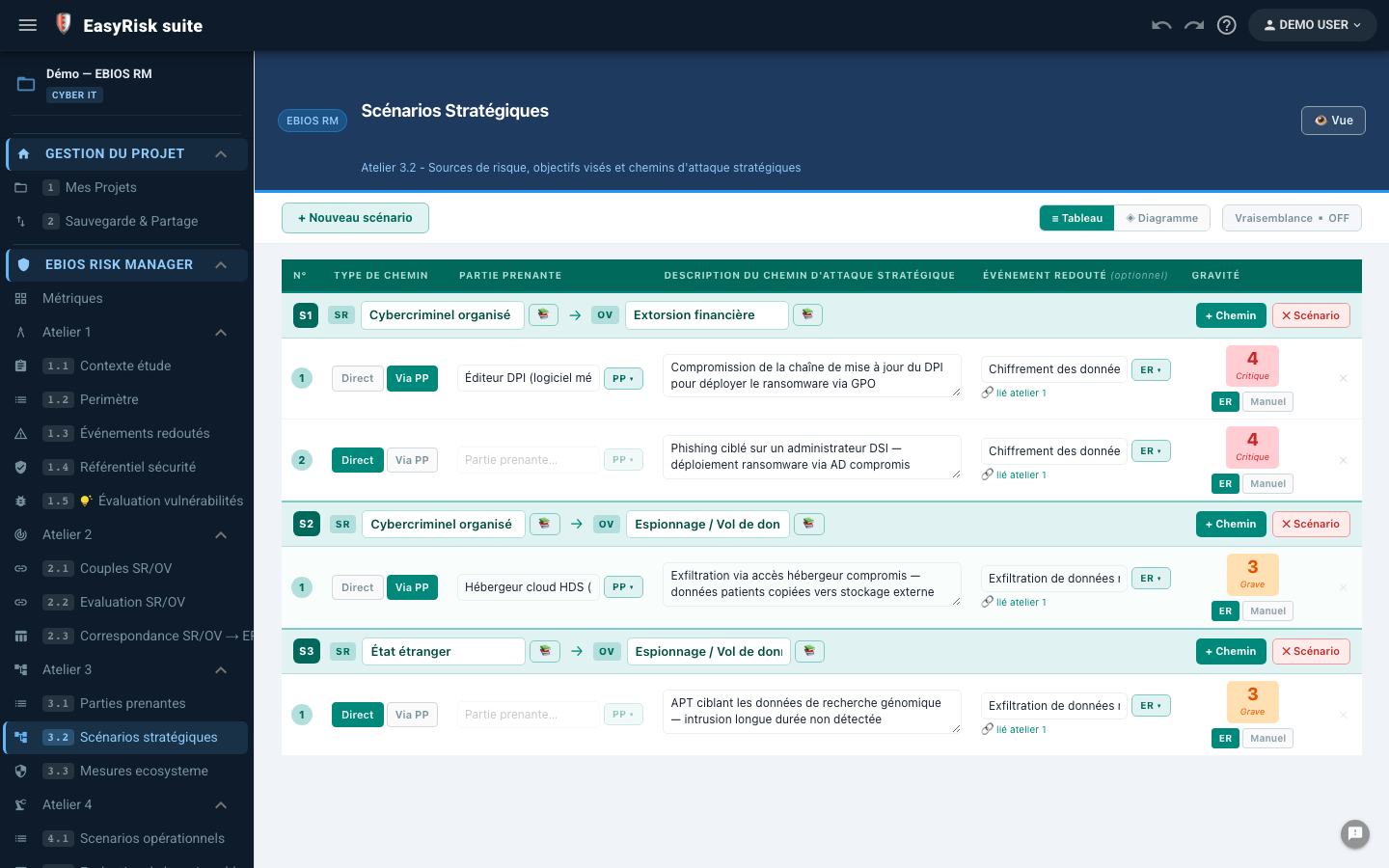
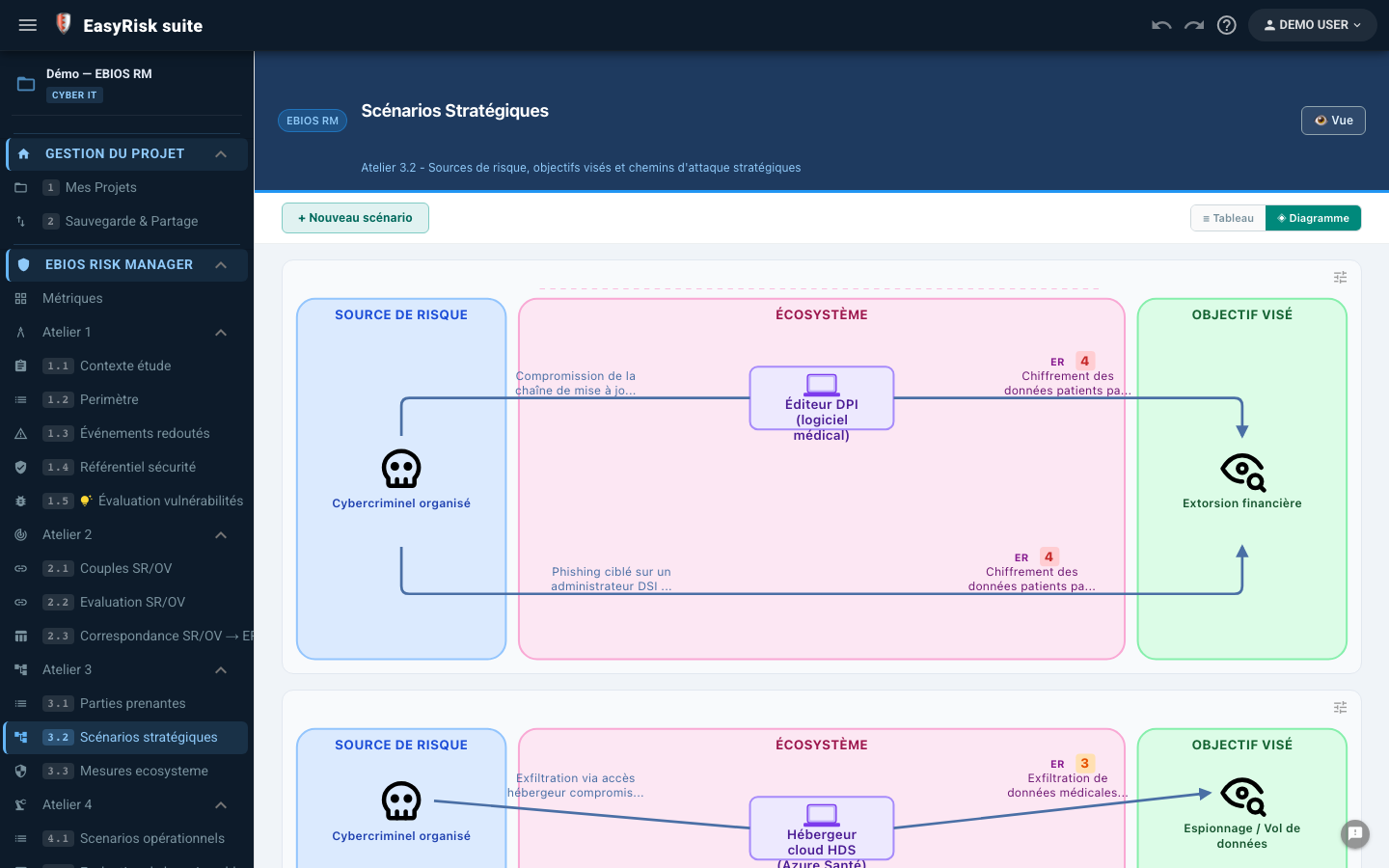
Workshop 3 builds high-level attack paths, using the organisation's ecosystem (suppliers, service providers, partners, and customers).
| Step | Content |
|---|---|
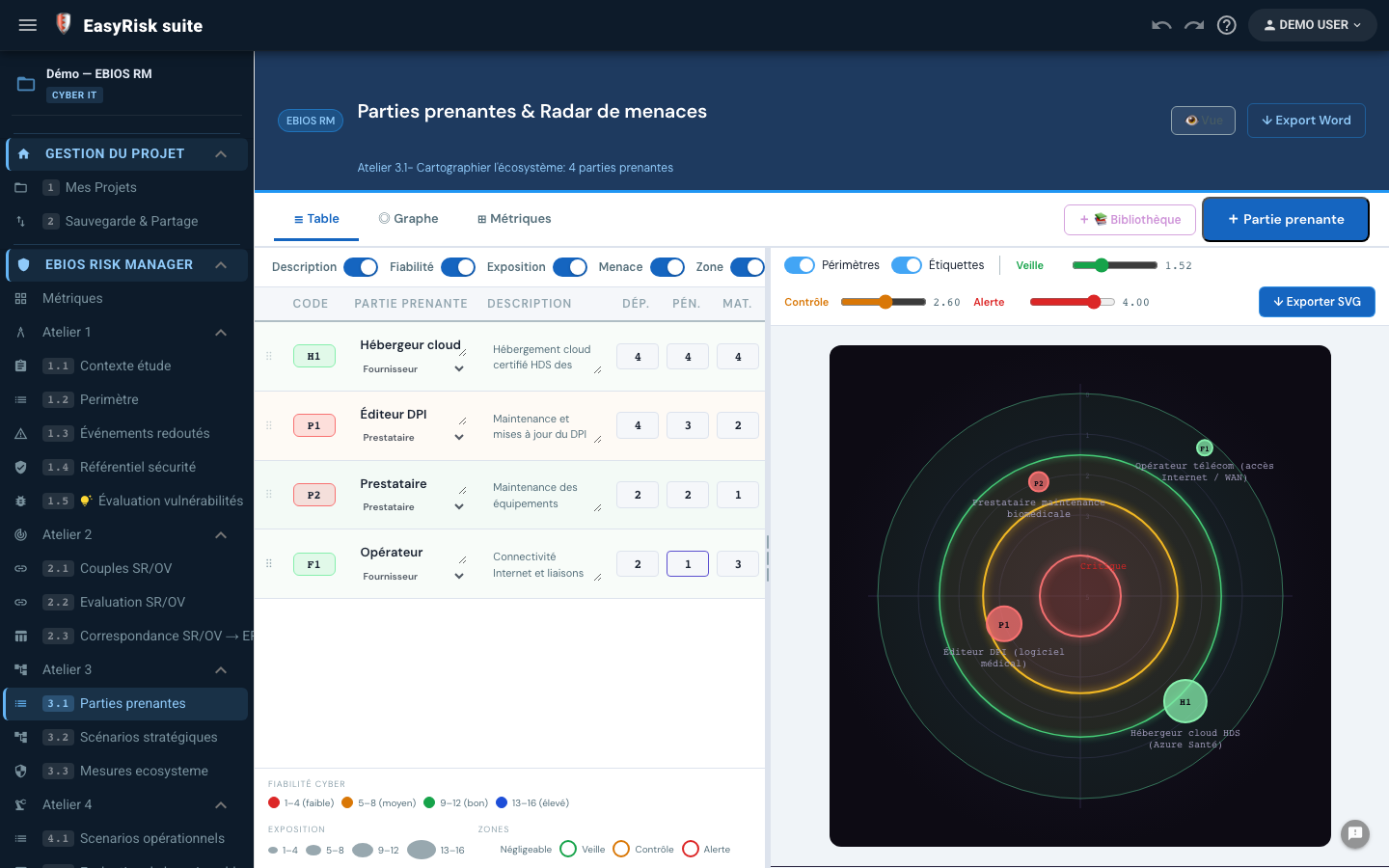
| 3.1 — Parties prenantes | Ecosystem mapping: dependence, penetration, and cyber maturity (1 to 4)—threat radar |
| 3.2 — Strategic scenarios | Attack paths connecting RS/TO pairs, stakeholders, and business values—table or diagram view |
| 3.3 — Ecosystem measures | Security measures applicable to ecosystem stakeholders |
Build a scenario
- Select an RS/TO pair retained in Workshop 2
- Identify stakeholders that may serve as attack vectors, or a direct path
- Describe the strategic attack path and link it to a feared event (Workshop 1)
7Workshop 4—Operational scenarios
Workshop 4 translates strategic scenarios into technical attack chains across supporting assets (sequences of elementary actions such as phishing, privilege escalation, and exfiltration) and calculates each scenario's risk level.
Action libraries
| Library | Use |
|---|---|
| MITRE ATT&CK | Detailed framework of real attack techniques organised by tactic |
| Simple | Simplified library for faster, less technical drafting |
Likelihood-rating methods
| Method | Principle |
|---|---|
| ⚡ Express | Likelihood defined directly on the scenario without action-level detail |
| 📊 Standard | Success probability rated by action; overall likelihood calculated automatically |
| 🔬 Advanced | Success probability and difficulty rated by action using a configurable matrix |
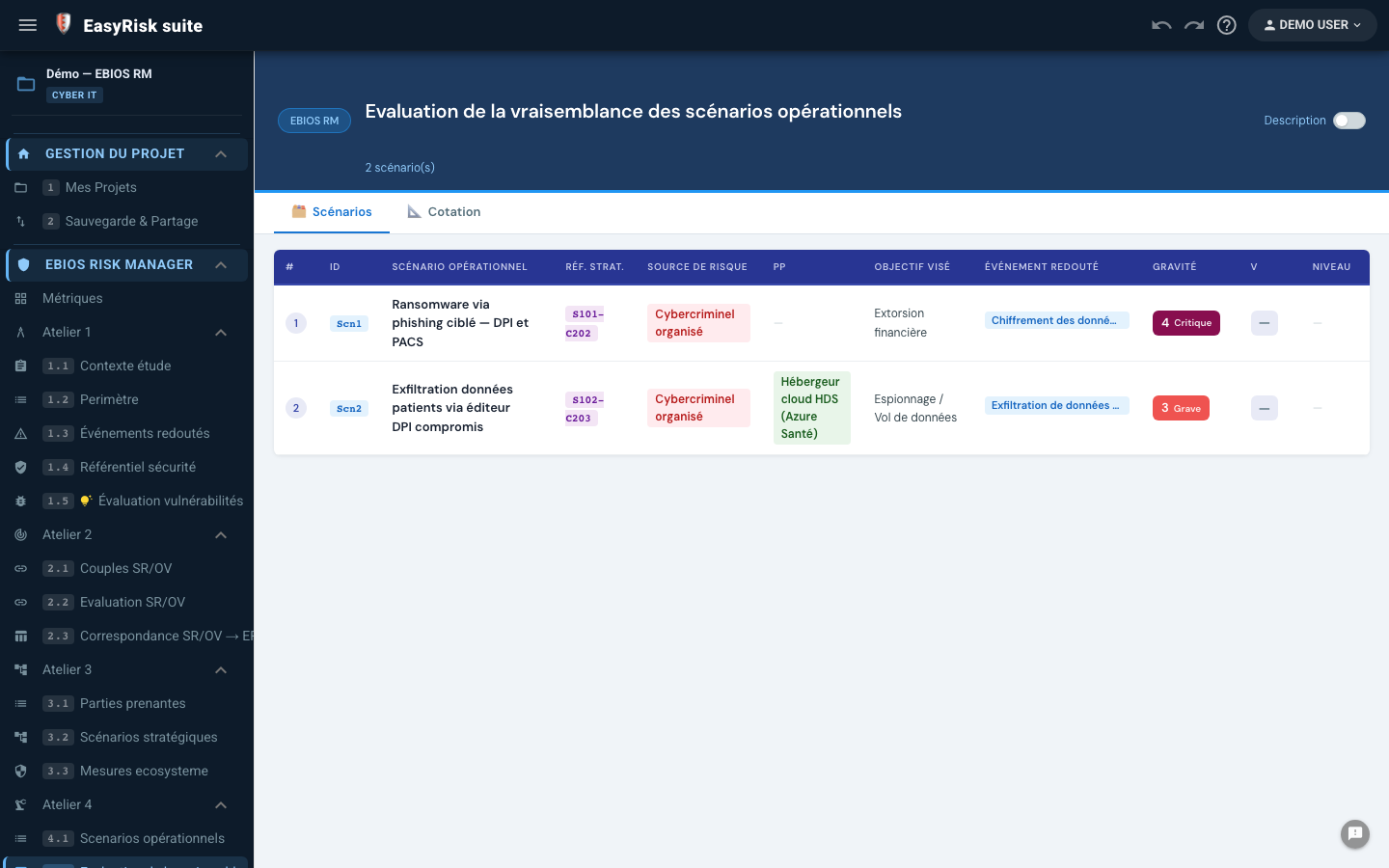
The Likelihood Assessment page (4.2) consolidates all operational scenarios and their risk levels (Severity × Likelihood), coloured using the configured scale. It is the summary view before Workshop 5.
8Workshop 5—Risk treatment
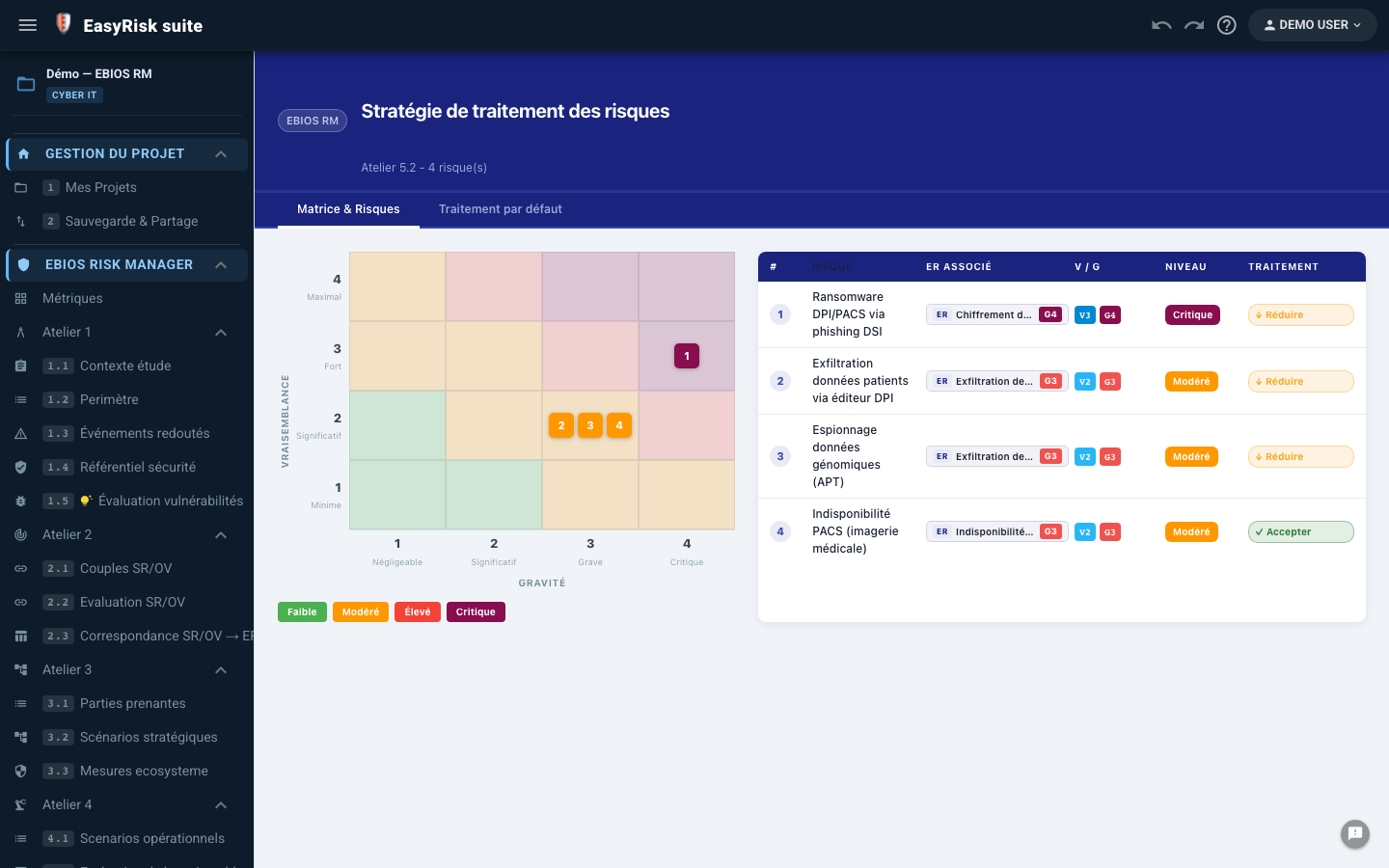
Workshop 5 plans treatment measures for risks identified in Workshop 4, tracks implementation, and calculates residual risks.
| Step | Content |
|---|---|
| 5.1 — Risk summary | Consolidated view of all identified risks positioned in the matrix |
| 5.2 — Treatment strategy | Choose treatment for each risk: Reduce / Avoid / Transfer / Accept |
| 5.3 — PACD | Detailed treatment plan: measures, owners, deadlines, costs, and progress |
| 5.4 — Residual risks | Comparison of inherent and residual risk after measures (side-by-side matrices) |
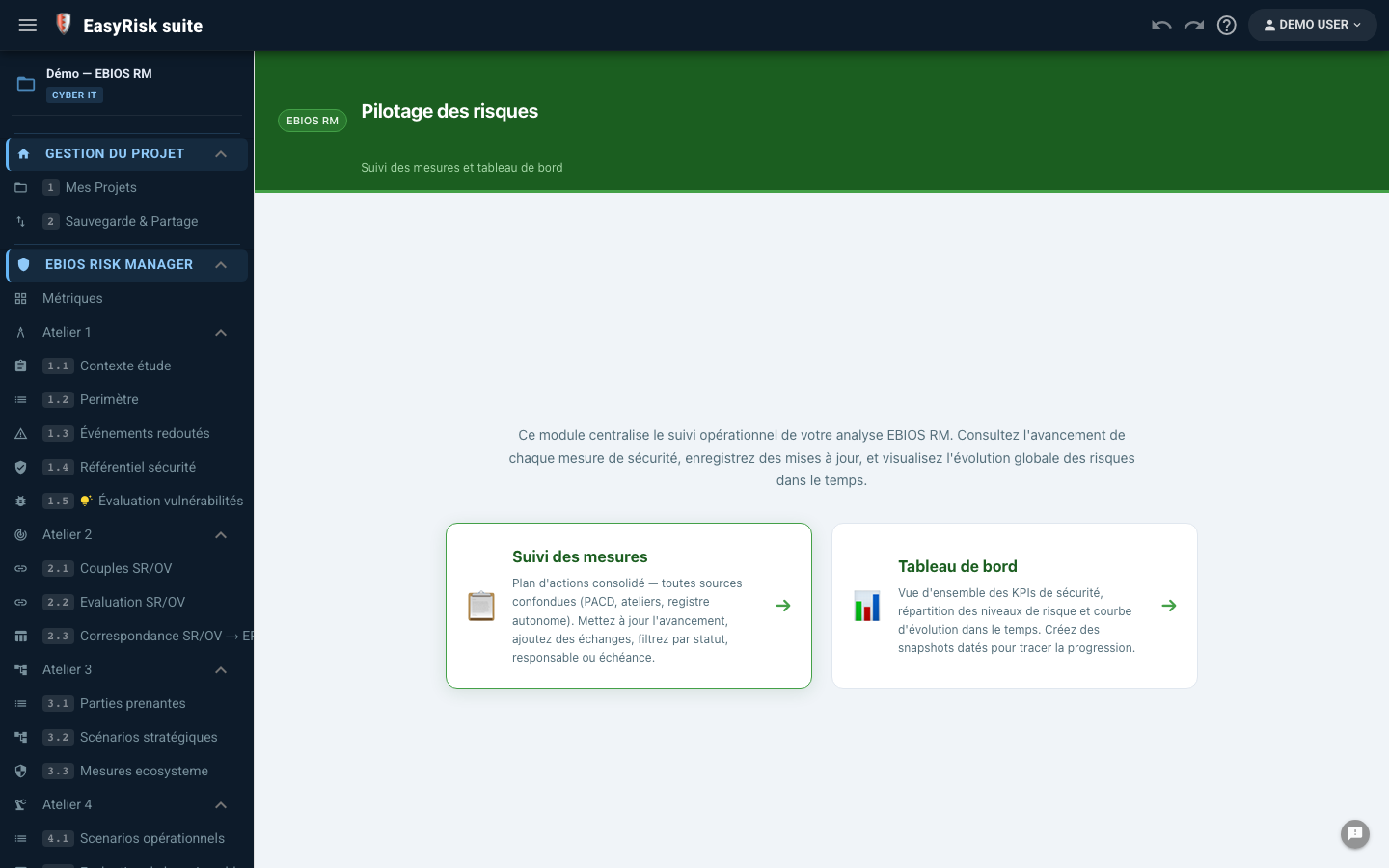
| 5.5 — Monitoring framework | Ongoing tracking of risk and measure status |
Treatment options (5.2)
| Option | Signification |
|---|---|
| Reduce | Implement measures to reduce likelihood or impact |
| Avoid | Remove the activity or system exposed to the risk |
| Transfer | Transfer the risk to a third party (insurance or outsourcing) |
| Accept | Make an informed decision not to treat the risk |
Treatment plan (CSIP, 5.3)
For each selected measure: category, owner, deadline, cost/obstacles/workload, status, progress, and effectiveness. Ecosystem measures from Workshop 3.3 can be imported automatically (🔗 / 🔒 badges).
9IEC 62443—Industrial-system security
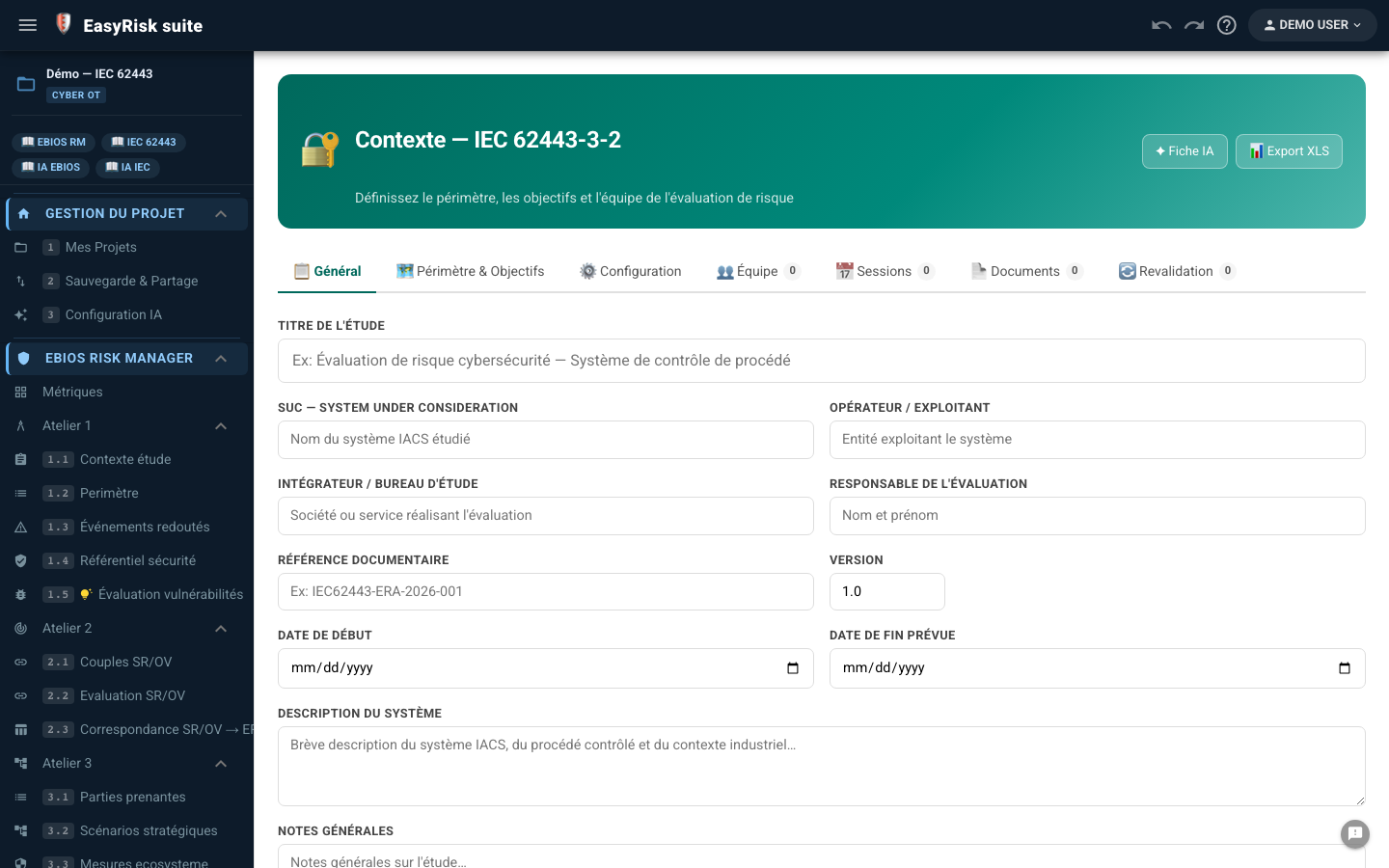
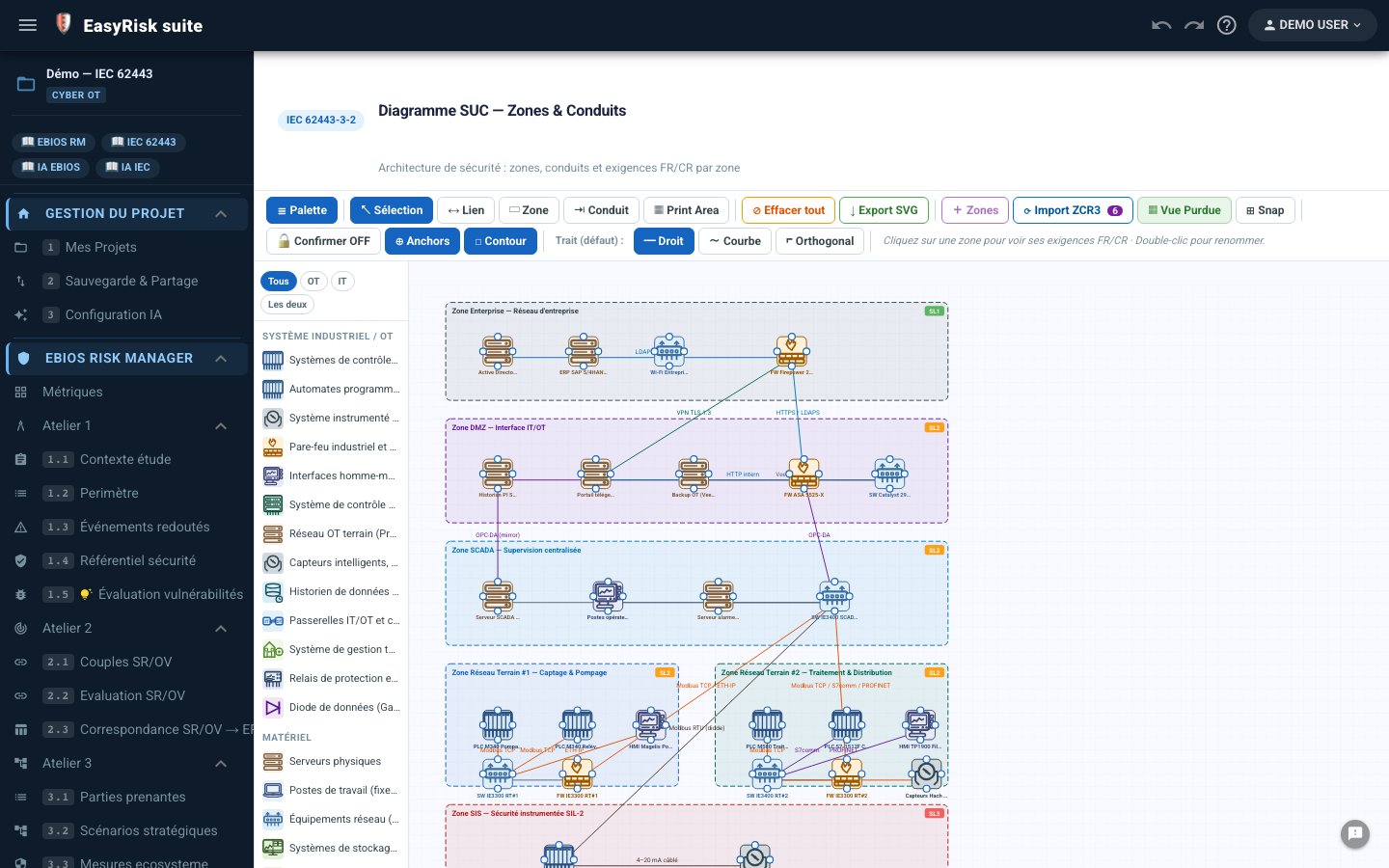
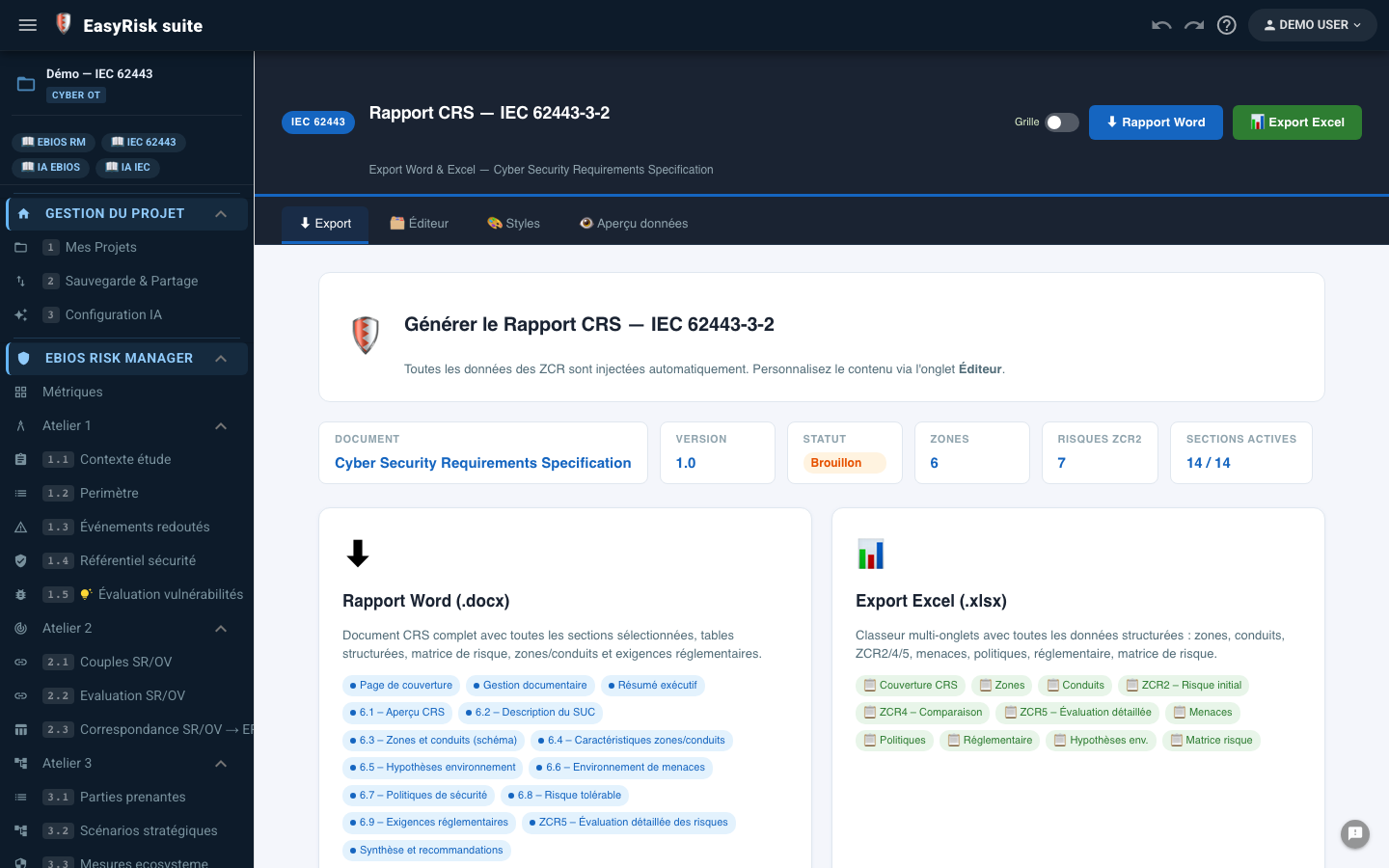
IEC 62443 structures security for OT systems—PLCs, SCADA, and industrial networks—using security zones and target security levels (SL-T). The detailed module guide is available in Guide IEC 62443 : context and SUC, ZCR1 to ZCR6, compliance, and CRS report.
10Generate the report
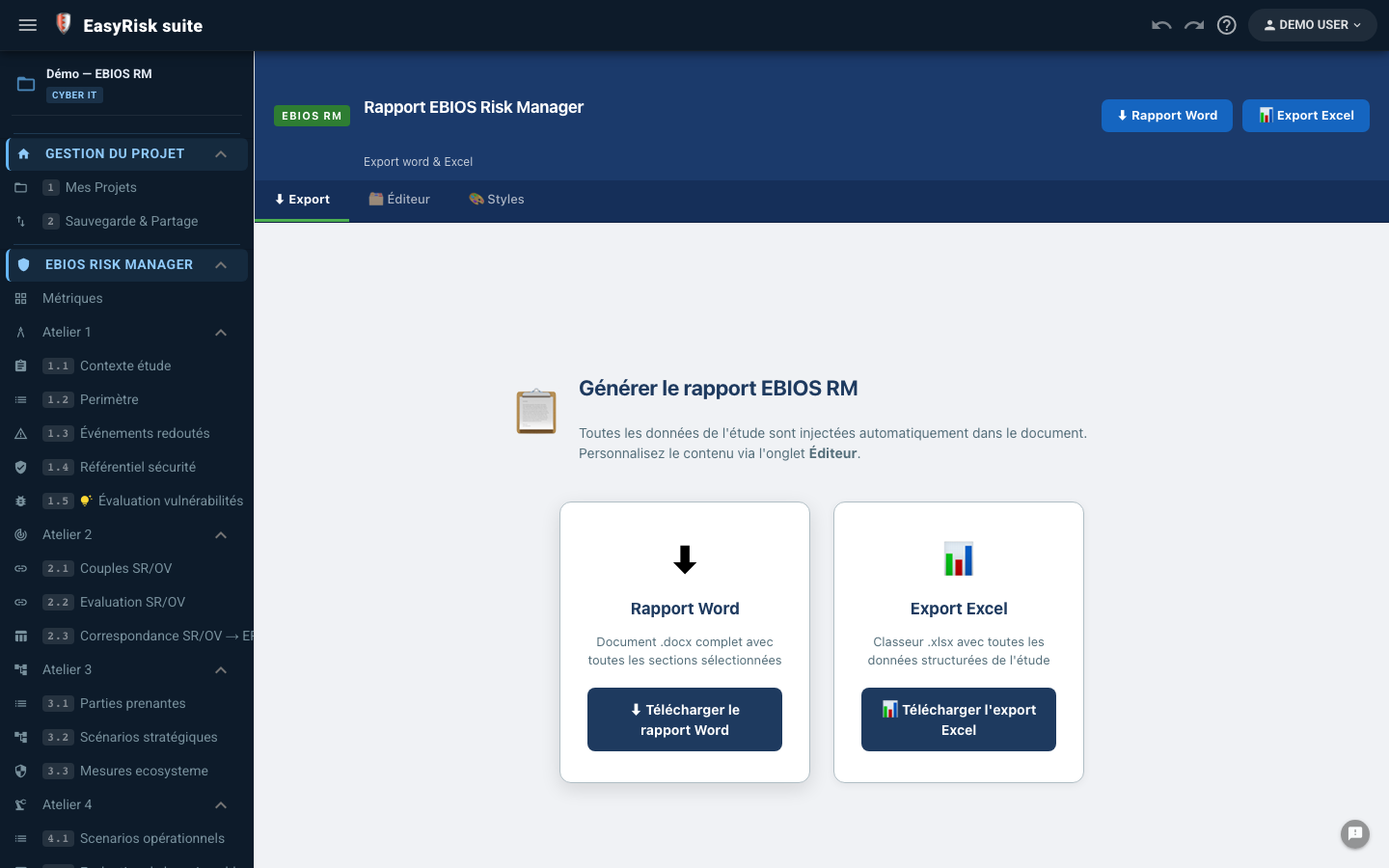
The EBIOS RM report (/ebios/report) assembles the final Word and Excel document from data in the five workshops.
Report tabs
| Onglet | Content |
|---|---|
| ⬇ Export | Word report (.docx) structured by workshop, plus Excel export (.xlsx) with one worksheet per workshop, compatible with ANSSI templates |
| 🗂️ Editor | Optional sections, customisable title, and narrative data feeding variables {token} |
| 🎨 Styles | Visual styling for the Word document (colours and fonts) |
Generate the Word report
- Open the Report page from the navigation menu (EBIOS or IEC 62443)
- Customise content in the Editor tab —modified sections display a ✎ badge
- Click ⬇ Exporter Word (.docx) —the file is generated in your browser
- The report is named automatically using the project title and date
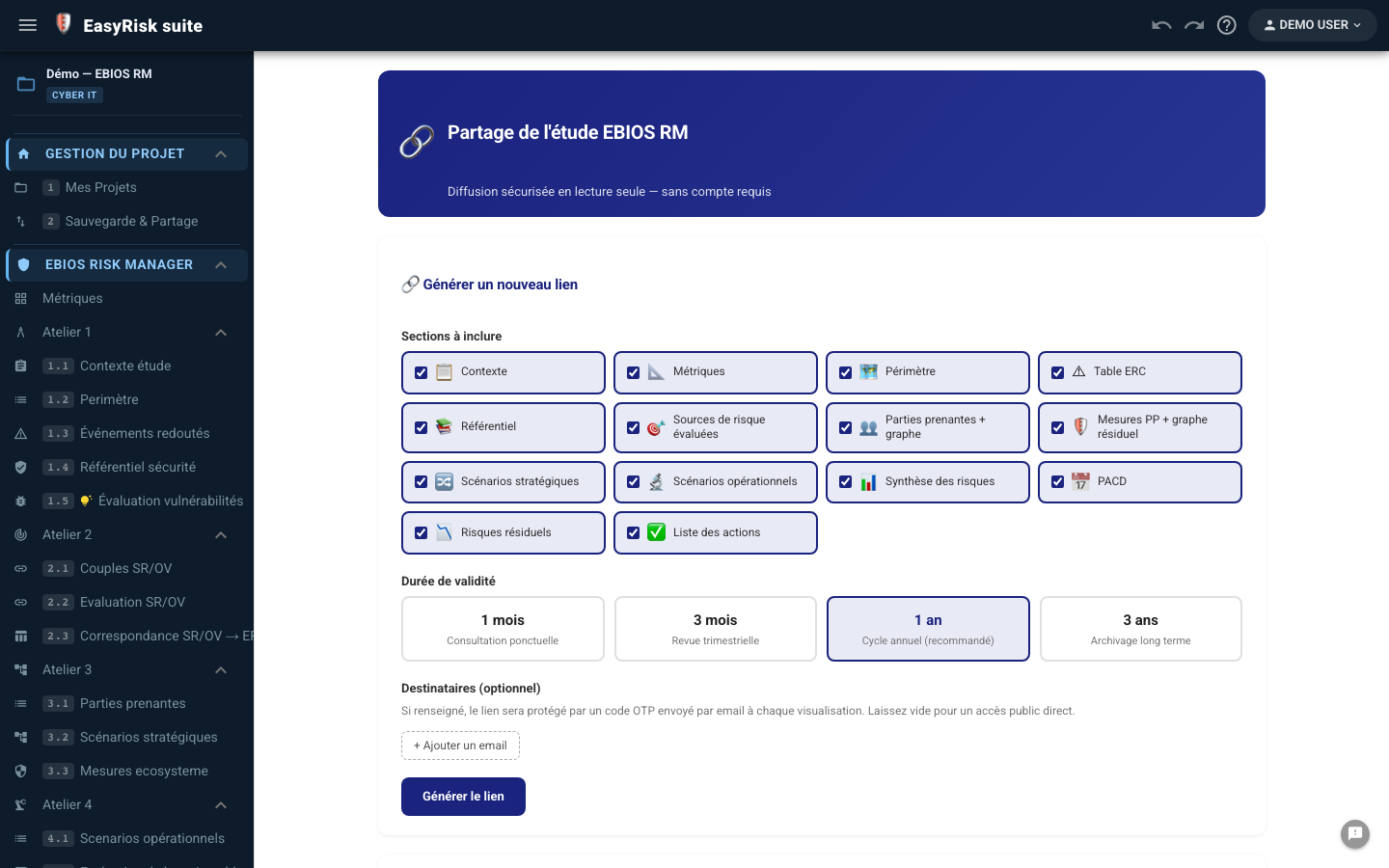
Sharing and collaboration